
-
Download and install
Download
ApexCommentator-Setupand run it. It installs for your Windows user, so you don't need admin rights.- Windows may say "Windows protected your PC", because the installer isn't code-signed yet. Choose More info, then Run anyway.
- Rather not install? A portable zip is attached to the same release.
-
Start it and join a session
Start Apex Commentator from the Start menu or the desktop icon. Join or spectate a session in iRacing and it connects by itself, and reconnects if iRacing restarts. The control panel opens in its own window.
No race to watch yet? The Apex Commentator (demo mode) shortcut runs a simulated race, so you can set everything up before race night.
-
Build your league
Open the League builder tab and pick a start:
- Build from the current session takes the drivers in the session you're in: names, car numbers and teams.
- Blank league lets you type it in by hand.
- Import league… loads a league exported from Apex Commentator on another PC.
No iRacing login is needed. Then add classes, logos and sponsors, and set up teams and your points system so the championship runs itself.
-
Add the graphics to OBS
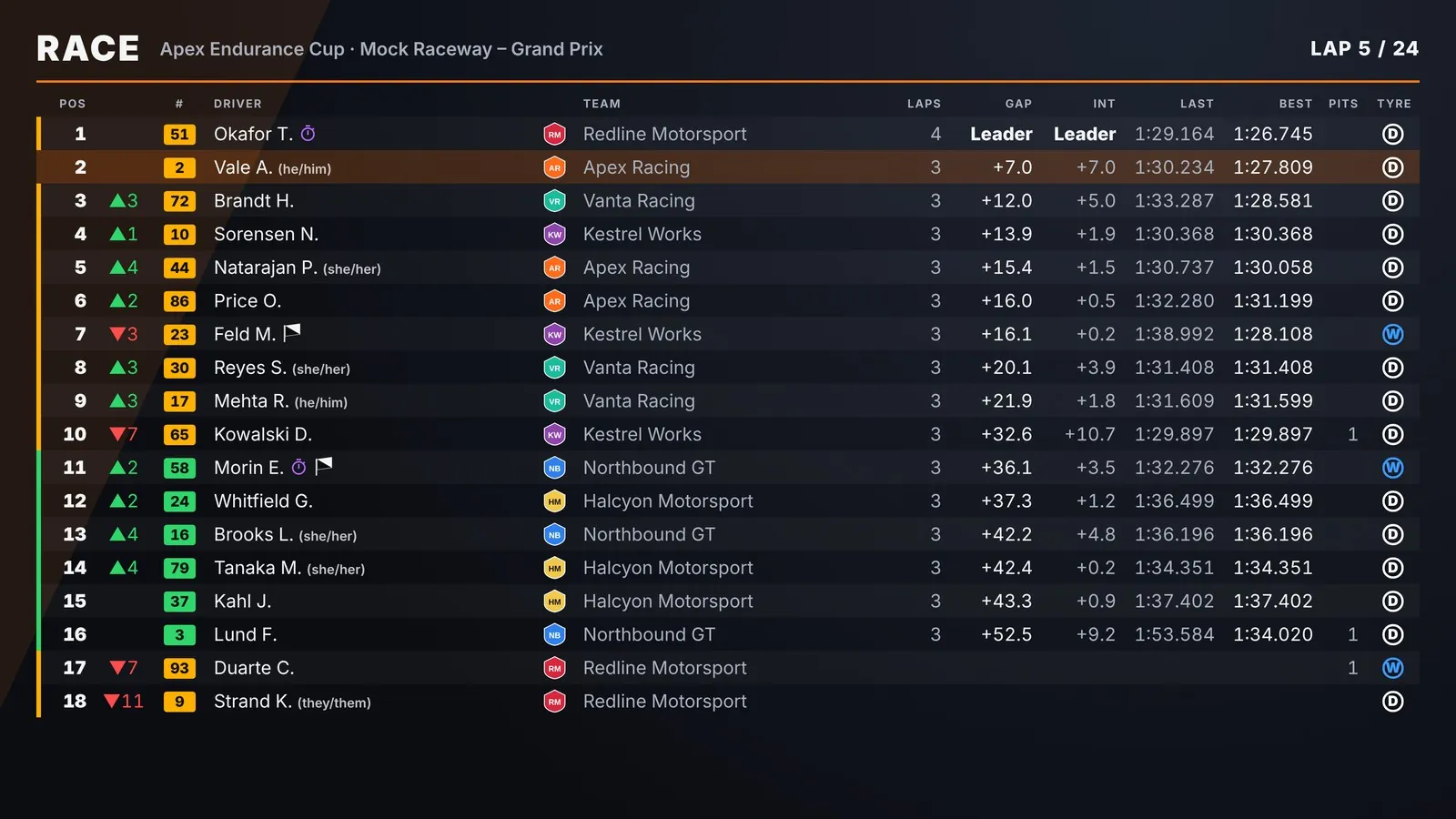
The Widgets tab turns each graphic on and off. Widget Settings has each one's address, a live preview and its settings.
- In OBS, add a Browser Source for each graphic you want, at 1920 × 1080. The background is transparent.
- Changes you make in the app show on stream straight away.
- To run the control panel inside OBS, open Docks → Custom Browser Docks and add
http://localhost:8180. It fits itself to narrow docks.
-
Or skip OBS
Any graphic or board can go straight on your monitor: press Show on my screen under its card on the Widgets tab. Run iRacing in windowed or borderless mode so the graphic can sit on top.
-
Share live timing with your viewers
On the Live timing tab, press Put the live timing online and copy the link. Anyone can open it on a PC or phone to follow the leaderboard, a driver tracker, head-to-heads and the track map. Viewers connect through Cloudflare, never to your PC.
Set a Delay to match your stream's delay so the timing never spoils what viewers are about to see. The free link changes each time; for a link that stays the same, add your own Cloudflare tunnel under Your own address.
-
Commentate with a partner
With dual commentary, a co-commentator on another PC follows your camera, so you both always see the same car.
- You (the host) tick Let a co-commentator follow my camera on the Home tab. The app shows your address and a six-digit code.
- Your co-commentator types them under Follow a host's camera and presses Follow.
- Over the internet, either forward port 8190 to the host's PC or join the same VPN (Tailscale, ZeroTier, Radmin VPN) and use the host's VPN address.
Need help?
Apex Commentator checks for updates when it starts and every few hours, and shows what's new before it installs. If something goes wrong, press Show log file on the Home tab (under Updates) and send us apex.log, with roughly when it happened. You can open an issue on GitHub or message shamz2 on Discord.
See what changed in each version in the release notes.
Guides · Apex Commentator
Get started with
Apex Commentator
Set up your league broadcast: install, build your league, add the graphics to OBS and share live timing with your viewers. Works with iRacing on Windows 10 and 11.