
-
Download and install
Download the installer and run it.
- Windows may say "Windows protected your PC", because the app isn't code-signed yet. Choose More info, then Run anyway.
- Rather not install? Use
Apex-Overlays-portable.exefrom the same release. - The app needs Microsoft's WebView2, which Windows 10 and 11 already have. The installer fetches it if it's missing.
-
Start Apex Overlays
The settings window opens. The app lives in the system tray, so closing the settings window keeps your overlays running.
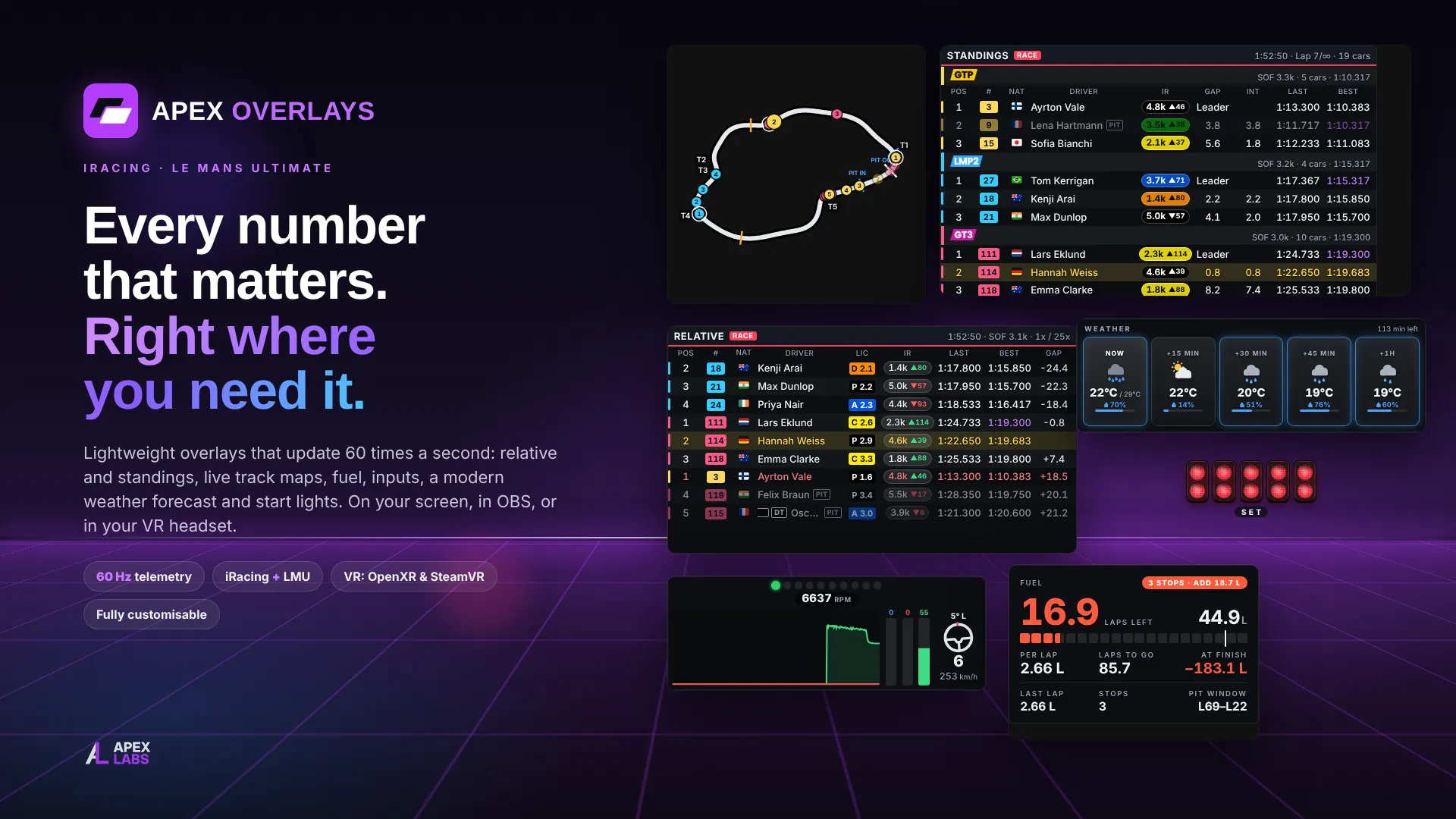
A fresh install starts with no overlays. Press Add overlay and pick the ones you want, such as Relative, Standings and Fuel calculator. Or open the Layout Market and start from a layout another driver has shared.
-
Place your overlays
Press Ctrl + Shift + E (or Edit mode in the settings) to drag and resize overlays. Press it again to lock them. Locked overlays are click-through, so they never get in the way of the game.
Ctrl + Shift + H shows or hides everything. You can change both hotkeys.
-
Start your game and race
Start iRacing or Le Mans Ultimate. The overlays appear as soon as you're in a session. The game switch at the bottom of the sidebar is on Auto, so the app follows whichever game is running. You can also pin it to one game.
-
Make it yours
- Each overlay has its own scale, opacity, background opacity, rules for when it shows (not in the car, on pit road, outside races) and custom CSS.
- Relative and standings let you turn on, turn off and reorder every column.
- Themes restyle every overlay and the settings window. There are 11 to start from, including official team themes, and you can edit any colour and save your own.
- Share layout… saves your whole layout and theme to a file for a friend. Shared files never contain tokens, logins or leagues.
-
Stream with OBS
Every overlay is also a web page, such as
http://127.0.0.1:8182/o/relative. The Streaming / OBS page lists every address. Add one to OBS as a Browser Source at the overlay's size; its background is transparent.Streaming from a second PC? Turn on Allow other PCs on my network and use this PC's IP address in place of
127.0.0.1. You can also runapex-overlays-server.exefrom the release on the streaming PC. -
Race in VR
VR mode is Automatic by default. When the game runs in OpenXR (Virtual Desktop, Quest Link, Pimax, Varjo, SteamVR's OpenXR and others), the overlays are drawn inside the game with no SteamVR needed. Otherwise they show as SteamVR overlays while SteamVR runs.
Overlays keep their own positions in VR, so moving them in the headset doesn't change your screen layout. Settings → General → VR can reset them.
-
Set up your league (optional)
The League builder adds your league's classes, teams, points and live projected championship to the relative and standings. The quickest start is Create from current session, which builds the classes and roster from the session you're in.
You can also import a league from iRacing by its ID. That needs iRacing Data API access: a client ID and secret from iRacing support, entered under League builder → Import a league from iRacing.
-
Try it without the game
Run
"Apex Overlays.exe" --mockfor a built-in three-class race with fuel use, pit stops and a passing rain shower. It's handy for setting up layouts away from the sim.
Need help?
Apex Overlays updates itself: it checks for new versions when it starts, and under Settings → General → Updates. If something isn't right, open an issue on GitHub or message shamz2 on Discord. Tell us your game, the overlay and what you expected to see.
See what changed in each version in the release notes.